
「elementToBeClickable」を実行することで要素がクリック出来る状態になるまで待機することが出来ます。
下記サンプルではまず初めに、「WebDriverWait」コンストラクタの引数に対象driverと待ち時間(秒数)を指定して、インスタンスを作成しています。
次に作成されたインスタンスに対して「until」メソッドを実行しています。「until」メソッドは、引数に指定された条件が真になるまで待機するメソッドです。引数に指定するメソッドの「elementToBeClickable」は、「ExpectedConditions.elementToBeClickable」の形で用いることでクリックできる状態か確認することができます。また、「elementToBeClickable」は引数にどの要素に対して行うか設定する必要があります。引数でどういった方法で要素を取得するか(要素ロケータ)を指定し、要素を取得しています。つまり総合すると要素がクリックできる状態になるまで待つということになります。もし要素が「WebDriverWait」コンストラクタで指定した待ち時間を越えても、期待値の状態にならない場合はExceptionが発生します。今回のケースではHTML内のjavascriptで8秒後にボタンがクリック出来る状態になるように設定しています。待ち時間を10秒に設定しているのでExceptionは発生しません。
※条件を指定して待機についてはこちら
説明
◆メソッド
  ・public static ExpectedCondition<WebElement> elementToBeClickable(WebElement element)
◆使用形態
  ・ExpectedConditions.elementToBeClickable(element)
◆備考
  ・要素が表示されてもEnable状態になるまで待機する
  ・最大待機時間を越えても要素がEnable状態にならない場合はExceptionが発生する
◆関連項目
  ・指定した要素が表示されるまで待機する
  ・指定した要素が非表示になるまで待機する
サンプル
import java.time.Duration;

import org.openqa.selenium.By;
import org.openqa.selenium.WebDriver;
import org.openqa.selenium.WebElement;
import org.openqa.selenium.chrome.ChromeDriver;
import org.openqa.selenium.support.ui.ExpectedConditions;
import org.openqa.selenium.support.ui.WebDriverWait;

public class WebTest{
  public static void main(String[] args){
    //Chrome制御のためChromeDriverのパスを指定
	System.setProperty("webdriver.chrome.driver",
		                            "D:\\AutoTest\\chromedriver.exe");
	//Chromeを起動する
	WebDriver driver = new ChromeDriver();
    //指定したURLに遷移する<図1>
    driver.get("file://D:/AutoTest/elementToBeClickable.html");
    //ボタンの要素を取得する
    WebElement element = driver.findElement(By.id("disableBtn"));
    //指定したdriverに対して最大で10秒間待つように設定する
    Duration waitTime = Duration.ofSeconds(10);
    WebDriverWait wait = new WebDriverWait(driver, waitTime);
    //指定したボタンが表示されクリック出来る状態になるまで待機する
    wait.until(ExpectedConditions.elementToBeClickable(element));
  }
}
※selenium version 4.1.4で動作確認をしています
実行結果
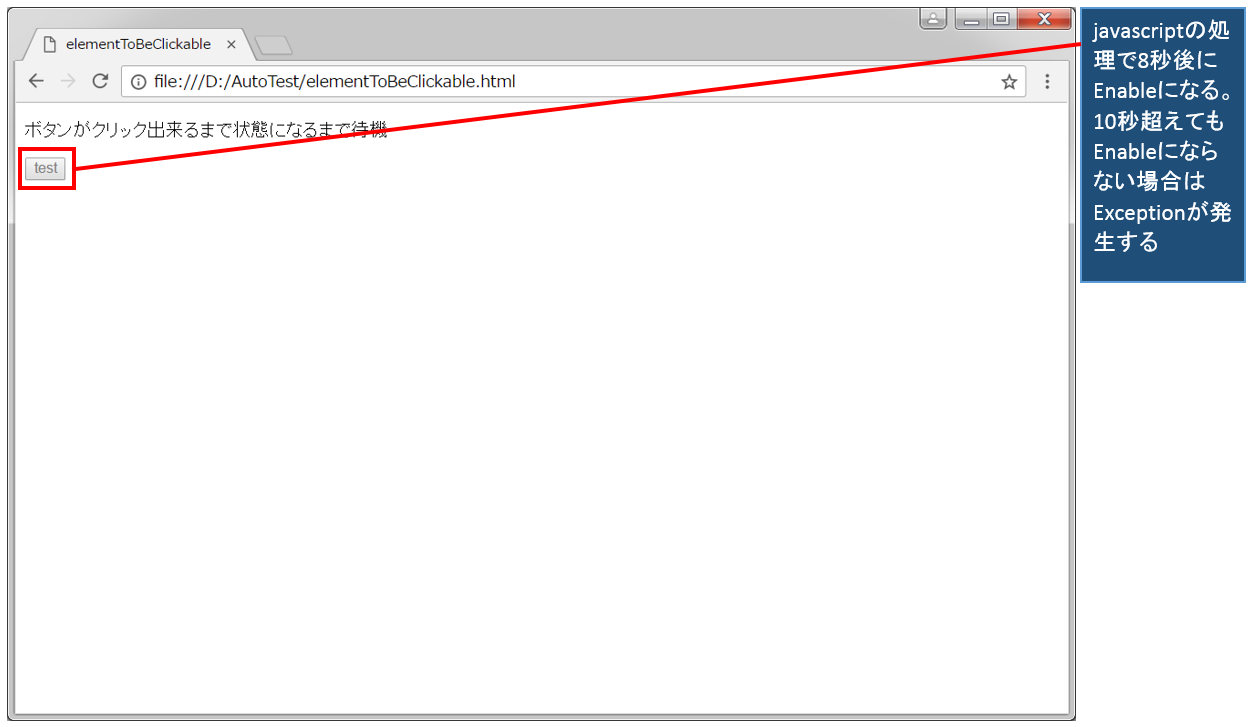
elementToBeClickable.html<図1>
<!DOCTYPE html>
<html lang="ja">
    <head>
        <title>elementToBeClickable</title>
    </head>
    <body>
        <p>
            ボタンがクリック出来るまで状態になるまで待機
        </p>
        <p>
            <input type="button" value="test" id="disableBtn" disabled>
        </p>
        <script>
            function dis_btn(){
                var dBtn = document.getElementById("disableBtn").disabled = false;
            }
            setTimeout("dis_btn()", 8000);
        </script>
    </body>
</html>
動画デモ
※字幕をONにすると解説のテロップが表示されます※